 3a180eb983
docs/USER_GUIDE.md: a full walkthrough of every screen — Tracker (transport,
grid, note-offs, scrolling), the punch-in keyboard, Arrangement, Mix
(channels, FX routing, recording), Toolbox (tile gestures, Synth/Sampler/
SF2-XI editors, effects, presets) and Setup (projects, audio routing, themes,
input bindings). Also covers the four input methods incl. the new
hold-to-repeat, file formats, recording, and default keyboard/gamepad/MIDI
maps. 11 on-device screenshots under docs/screenshots/, linked from README.

Also refresh the README's stale "NES synth" wording to "3-oscillator synth"
(renamed in v0.5.0).

Docs only — no code change, so no version bump or rebuild.

Co-Authored-By: Claude Opus 4.8 <noreply@anthropic.com>
16 KiB
Sizzletracker — User Guide
Sizzletracker is a retro, demoscene‑flavoured music tracker for Android. You sequence notes on a fixed‑width grid, build a song out of reusable pattern blocks, and play everything through built‑in synths, samplers and effects — a low‑latency native audio engine driving it all. Everything can be driven equally by touch, a physical keyboard, a gamepad, or MIDI.
Screenshots in this guide were taken on a phone in the Vintage Beige theme. Your colours will differ if you pick another palette, and any floating buttons you see over the app in a shot belong to a different app, not Sizzletracker.
Contents
- Requirements & install
- Core concepts
- Getting around: the four tabs
- Tracker tab
- The punch‑in keyboard
- Arrangement
- Mix tab
- Toolbox tab
- Setup tab
- Input devices & hold‑to‑repeat
- Files, projects & sharing
- Recording
- Default control maps
- Tips & troubleshooting
Requirements & install
- Android 8.0 (Oreo) or newer. The app relies on the native MIDI API and low‑latency AAudio, which need this floor.
- Audio uses Oboe (low‑latency) with an automatic fallback to the standard path if Oboe can't start on your device.
- Installed as an APK (e.g. from a personal F‑Droid repository). Package id:
space.rcmd.android.sizzle.
Core concepts
A few ideas make the whole app click:
- Tracks vs. channels. The pattern grid has four vertical tracks (columns of notes). Each note carries a MIDI channel number; that channel decides which mixer channel (bus) actually sounds it. So where a note sits in the grid is independent of which instrument plays it — routing is by channel.
- Blocks. A block is a short pattern. You compose blocks in the Tracker, then lay them out over time in the Arrangement to form the full song.
- The Toolbox holds up to 16 devices — instruments (Synth, Sampler, SF2/XI) and effects (delay, filter, reverb, MIDI arpeggiator, …). The Mix tab assigns one instrument and up to four effects to each of the four channels.
- Four equal inputs. Touch, keyboard, gamepad and MIDI are all translated into the same internal actions, so every feature works from every device.
Getting around: the four tabs
The bottom bar switches between the four main screens:
| Tab | What it's for |
|---|---|
| Tracker | Enter notes, edit patterns, arrange blocks into a song |
| Mix | Assign instruments/effects to channels, set levels, arm recording |
| Toolbox | Create and edit the 16 instrument/effect devices, manage presets |
| Setup | Projects, audio routing, themes, input bindings, MIDI panic |
Tracker tab

The top of the screen is the transport and editing toolbar; below it is the pattern grid; below that (in portrait) is the Arrangement.
Transport row
- ⧉ STOP — stop playback. Pressing STOP again when already stopped rewinds to the start.
- ▶ PLAY / ❚❚ PAUSE — start or pause. When the arrangement is empty, the currently‑edited pattern loops so the Tracker is always audible while you work.
- – / + BPM — nudge the tempo. Hold to repeat.
- SIG — time signature (beats per bar / beat unit).
Pattern row
- BLK — which block you're editing.
- LEN — the block's length in lines.
- SCALE — the musical scale used when entering/transposing notes (e.g. Chromatic). Note edits snap to this scale.
- ROOT — the scale's root note.
Editing row
- SEL — start/extend a selection.
- ✂ / ⧉ / 📋 — cut, copy, paste the selection.
- ✕ — clear the focused cell(s).
- OFF === — place a note‑off on the focused track (see below).
- SKIP — how many lines the cursor jumps after each note entry (step size).
- KBD — show/hide the punch‑in keyboard.
The grid
Each row is one line (numbered in hex on the left). Each of the four tracks shows three columns:
- Note — e.g.
C‑4, or···when empty, or===for a note‑off. - Velocity — how hard the note plays (hex), or
..when empty. - Channel — the MIDI channel that routes the note to a mixer bus.
The cursor highlights the focused cell; tap a cell to move there. The playhead row is highlighted while playing. Beat and bar lines are tinted so you can read the meter at a glance.
Scrolling & follow. During playback the grid auto‑centres on the playhead; flick up/down to detach into free inertial scrolling; switching to another block re‑attaches the auto‑follow.
Note‑offs are tied to their track. A === cell has no note, velocity or
channel of its own — it simply releases whatever that track last started. This is
how you end a sustained note cleanly.
The punch‑in keyboard
Tap KBD to reveal a two‑octave on‑screen piano fixed at the bottom.

The bar above the keys sets what you're punching in:
- CH — the MIDI channel written into new notes (routes them to a mixer bus).
- OCT — the octave pair shown on the two rows.
- VEL — the velocity written into new notes.
Playing a key enters a note at the cursor and advances by the SKIP amount. The same keyboard is also used purely to audition instruments in the Toolbox.
Arrangement
Below the grid is the Arrangement — a timeline of your blocks.
- Rows are lanes (independent parts that play together); columns are beats.
- Paint a block into a lane so it sounds at that point; a contiguous run of the same block plays it through beat‑by‑beat.
- M mutes a lane.
- LOOP loops the arrangement; A / B define two loop regions, each with its own repeat count (the –/×N/+ controls).
- FILL helps lay a block across a span quickly.
The canvas extends up to 256 bars, so full songs fit.
Mix tab

Four channels, side by side. For each channel:
- INSTRUMENT — the Toolbox device that makes its sound.
- FX 1–4 — up to four insert effects, applied in order.
- MIDI CH — which MIDI channel this bus listens on. Notes whose channel matches play here. (Set two buses to the same channel to layer them.)
- VOLUME — drag the fader.
- LIM — a per‑channel soft‑clip limiter.
- M / S — mute / solo.
The strip along the top controls recording of the master output:
- ● ARM — arm recording; capture begins when you press play.
- TAIL — how many bars of effect tail to keep after the sequencer stops.
- DIR — the destination folder for the rendered file.
- master → WAV — the master bus is captured to a stereo WAV.
Toolbox tab

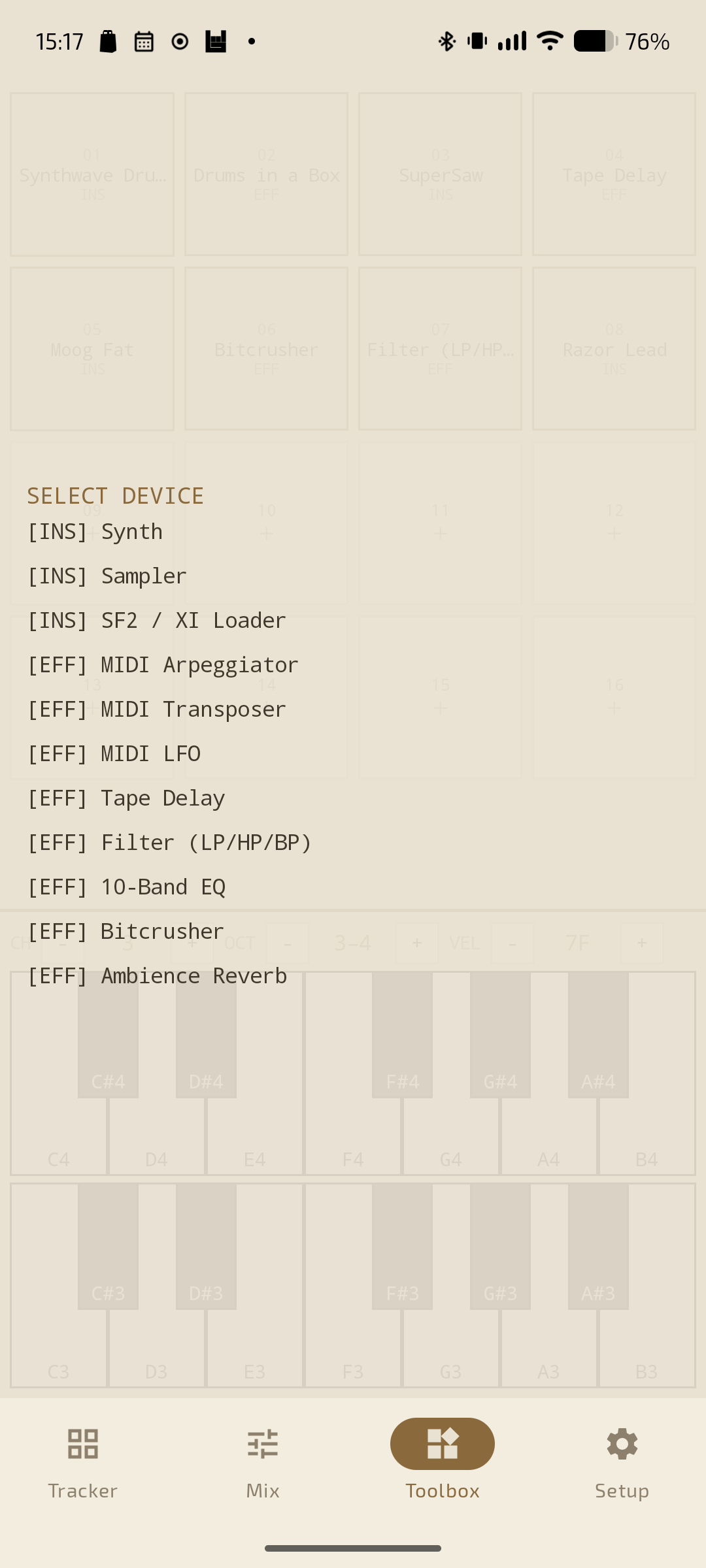
A 4×4 grid of 16 device slots. Filled tiles show the device name and whether it's an instrument (INS) or effect (EFF).
Tile gestures
-
Single tap an empty tile → choose a device to load.
-
Single tap a filled tile → open its editor.
-
Long‑press a filled tile → clear it (a confirmation appears first, since clearing discards the device and its settings and can't be undone).

The keyboard pinned at the bottom of the Toolbox auditions the current device.
Instruments
Synth — a three‑oscillator subtractive synth (Minimoog‑style): three oscillators → mixer → resonant low‑pass filter (with its own envelope and key tracking) → amplifier, plus a tempo‑synced LFO and a small modulation matrix. The editor is paged (swipe, or tap the dots): Oscillators, Filter, Amp + LFO, Mod.

Controls are rotary knobs: slide a finger up/down to change a value (a full sweep spans a comfortable travel distance, so fine tweaks are easy), and double‑tap a knob to reset it to its default. Factory presets include chiptune tones and a darkwave/industrial set (plucky basses, cutting leads, and harsh detuned deep basses for layering).
Sampler — a 16‑pad drum/sample bank. Each pad maps to a consecutive note from C2 upward.

Per pad you can IMPORT WAV, RECORD, CLIP (trim with the waveform markers), NORMALIZE, or CLEAR, and set a per‑pad volume. Tap a pad in the grid to play and select it.
SF2 / XI Loader — loads a single sample/instrument from a SoundFont (.sf2)
or FastTracker (.xi) file, pitched across the keyboard from its root note.

It has a volume ADSR envelope and an optional LOOP (sustains the sample until note‑off) with an adjustable crossfade (XFADE) to smooth the loop seam.
Effects
Insert effects (assign them to a channel's FX slots in the Mix tab):
| Effect | What it does |
|---|---|
| Tape Delay | Up to four tempo‑synced tape "heads", with feedback, dry/wet and tape character (saturation, darkening, wow/flutter) |
| Filter (LP/HP/BP) | Resonant low/high/band‑pass filter with warmth and a signal‑triggered cutoff envelope |
| 10‑Band EQ | Ten‑band graphic equaliser |
| Bitcrusher | Bit‑depth and sample‑rate reduction with drive |
| Ambience Reverb | A multi‑algorithm reverb with many factory spaces |
| MIDI Arpeggiator | Turns held notes into tempo‑synced octave patterns |
| MIDI Transposer | Shifts incoming notes by octaves/semitones |
| MIDI LFO | Modulates a chosen parameter of another device |
The Tape Delay editor, as an example — drag a head's fader to set its time, tap its number to switch it off/on:

MIDI effects vs. audio effects. The Arpeggiator, Transposer and LFO shape notes/parameters before the sound is made; the rest process audio. All are managed the same way — as devices you drop into a channel's FX slots.
Presets
Every device editor has a preset bar at the top:
- PRESET dropdown — load a saved preset.
- SAVE — save the current settings as a named preset.
- DELETE — remove the selected preset (asks to confirm).
- IMPORT — load a preset from a file (Sampler presets can be imported from a
.zipbundle that carries the sample). - SHARE — send the preset via the system share sheet.
Presets are plain text (.szp), stored per device type in the app's storage.
Factory presets are seeded automatically and reappear as new ones ship, but ones
you delete stay deleted.
Setup tab

- MIDI PANIC — ALL NOTES OFF — instantly silences every voice. Use it if a note ever hangs.
- Project — save / new / delete full projects on the device, and Export /
Import
.sngfor desktop interchange. (See Files.) - Audio Devices — route Output and Input to USB or built‑in.
- Color Theme — pick a palette, or Export / Import
.sztthemes. Stock themes can't be deleted; imported ones join the list.
Scrolling down reveals the input‑binding editors:

- Gamepad Bindings — rebind buttons and button‑combos (chords).
- Keyboard Hotkeys — rebind physical‑keyboard keys.
- MIDI Bindings — MIDI‑learn: map any knob/pad to an action.
Input devices & hold‑to‑repeat
Sizzletracker treats touch, keyboard, gamepad and MIDI as equals — every action is available from each.
- Touch — tap the grid, drag faders/knobs, play the on‑screen keyboard.
- Physical keyboard — a built‑in "tracker piano" for note entry (see the map below) plus rebindable hotkeys for navigation, transport and editing.
- Gamepad — face buttons, shoulders, D‑pad and both analog sticks are all bindable and can be combined into chords (hold one control as a modifier).
- MIDI — notes play live; Control‑Change messages drive bound actions, and unmapped ones can be MIDI‑learned in Setup.
Hold‑to‑repeat. Holding a navigation control now auto‑repeats it — cursor Up/Down/Left/Right, column moves, and value increment/decrement. It fires once, then accelerates while held, and stops on release. This works identically on the keyboard, the gamepad (buttons, D‑pad and analog sticks) and a momentary MIDI control — so scrolling through a long pattern or ramping a value is a single hold. One‑shot actions (play, stop, tab switch, note/clear) still fire once even if held.
Files, projects & sharing
| Format | Contains | Use it for |
|---|---|---|
| Full project | Notes, blocks, arrangement + mixer, FX, instruments and sample assignments | Your working song on this device |
.sng |
Notes, blocks, arrangement only | Desktop‑compatible interchange |
.szp |
One device's settings (Sampler as a .zip with its sample) |
Sharing instrument/effect presets |
.szt |
A colour palette | Sharing themes |
Projects auto‑save, so a crash or process death resumes where you left off.
Export a .sng before wiping data if you want a portable copy of the song.
Recording
- In the Mix tab, set DIR (destination) and TAIL (bars of effect tail to keep), then press ● ARM.
- Press PLAY. Capture starts with playback and records the master bus.
- Recording ends automatically the set number of tail bars after the sequencer stops. The finished stereo WAV is written to your chosen folder.
Default control maps
Keyboard
Hotkeys (rebindable in Setup → Keyboard Hotkeys):
| Key | Action |
|---|---|
| Arrow keys | Move cursor (hold to repeat) |
| Tab / Shift+Tab | Next / previous column |
| Space | Play / pause |
| Enter | Stop |
| L | Toggle loop |
| Page Up / Page Down | Increment / decrement value (hold to repeat) |
| Delete | Clear cell |
` (grave) |
Note‑off |
| – / = | Octave down / up |
Tracker piano (fixed, for note entry):
- Lower octave:
Z S X D C V G B H N J M - Upper octave:
Q 2 W 3 E R 5 T 6 Y 7 U
Gamepad (default layout)
| Control | Action |
|---|---|
| A / B | Play‑pause / Stop |
| X / Y | Clear / Toggle loop |
| L1 / R1 | Previous / next tab |
| D‑pad / Left stick | Navigate (hold to repeat) |
| Right stick ↑ / ↓ | Increment / decrement (hold to repeat) |
Bind a control while holding another to create a chord (e.g. "A + Left").
MIDI
Note‑on/off play live. Bind Control‑Change numbers to actions in Setup → MIDI Bindings (or MIDI‑learn them). Momentary nav CCs auto‑repeat while held.
Tips & troubleshooting
- A note is stuck. Setup → MIDI PANIC silences everything immediately.
- No sound from a track. Check the note's channel matches a mixer channel's MIDI CH, that the channel has an instrument, and that it isn't muted (or another channel soloed).
- Crackles/dropouts. The engine adapts its buffer automatically; make sure no other heavy app is competing, and try routing output to a different device in Setup → Audio Devices.
- A preset/instrument you want to keep. Clearing a tile can't be undone — SAVE it as a preset first. Long‑press asks before clearing for this reason.
- Moving a song to another app. Export a
.sng(notes/blocks/arrangement are desktop‑compatible); keep a full project for the device‑specific mix and samples. - Auditioning fast. Open any instrument in the Toolbox and use the pinned keyboard; hold nav controls to move around quickly thanks to hold‑to‑repeat.
Sizzletracker is free software, licensed GPL‑3.0‑or‑later.